Guides
Retool Workflows Landing Page Update: What Changed and What's Missing
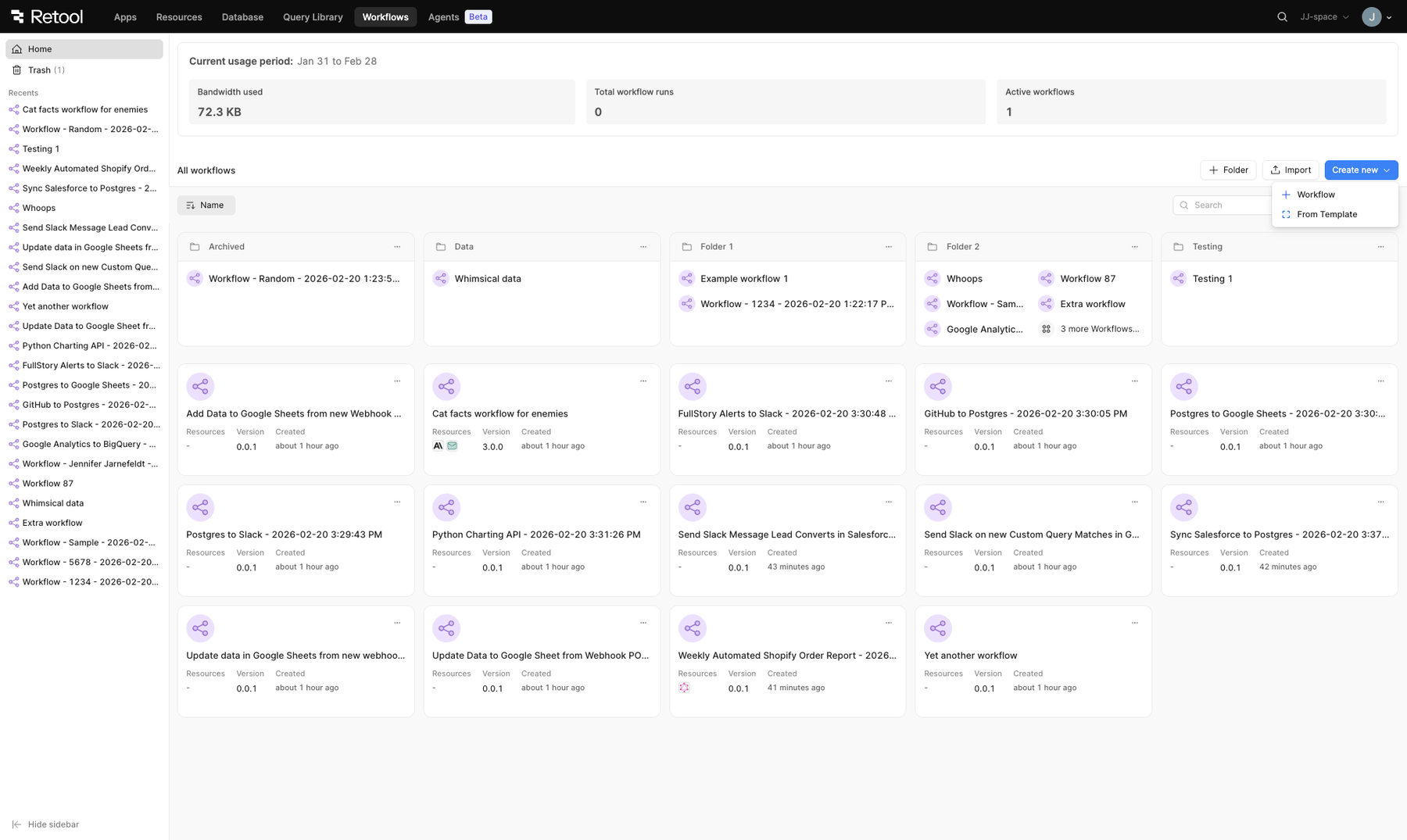
Retool recently pushed a significant redesign to the Retool workflows landing page, aligning it visually with the agents landing page. The update is live for cloud instances now, coming in an upcoming edge release, and is expected in the Q2 stable release for self-hosted instances. While the new layout is cleaner and more modern, several power-user features have gone missing — and if you manage automations at scale, you'll want to know exactly what's changed before your team hits a wall.
What's New in the Retool Workflows Landing Page
The redesigned landing page gives you a consolidated view of all workflows and folders within your Retool organization. Here's what you can do from the updated interface:
- Sort workflows by
Name,Last Updateddate, orCreateddate via a dropdown - Search for workflows by name
- Toggle between
Table viewand other display modes - Refresh the workflows list manually
- Import a workflow from JSON
- Create a new
Folder, a newWorkflow, or a workflow From Template
The left-hand sidebar now shows recently accessed workflows, and the overall visual design is more consistent with the rest of the Retool platform. For teams just getting started with workflows, this is a solid improvement in clarity.
What Was Removed (And Why It Matters)
If you're managing a large number of automations — or billing clients based on workflow run volume — several key operational features are no longer visible at a glance.
Where Did the Workflow Run Count Go?
The previous landing page displayed a count of workflow runs for the current billing period. This has been removed in the redesign. For teams on usage-based plans (Retool bills per 5,000 workflow runs), this count was essential for tracking which workflows were consuming the most resources and understanding cost distribution across automations. There is currently no replacement surface for this data in the new UI.
You Can No Longer See Recent Failures at a Glance
The old layout allowed you to see at a glance whether any recent runs for a given workflow had failed. That visibility is gone in the redesigned view. For teams managing dozens or hundreds of automations, spotting a failing workflow used to be a matter of scanning the list — now it requires navigating into each workflow individually. This is the most commonly cited operational regression in community feedback so far.
Folder Views Are Less Informative
When workflows are organized into folders, the new layout shows truncated workflow names and only the first few items before displaying a x more workflows count. There's no total workflow count displayed at the folder level, which makes folder-level dashboards harder to use as a quick status overview. Additionally, column header sorting (clicking a column to sort) is no longer available inside folder views — you're limited to the global sort dropdown, which is slower when triaging many workflows quickly.
Workflow Status Is Misleading for App-Triggered Workflows
Workflows triggered by apps can now appear as disabled in the dashboard even when they are actively being called. If a workflow has no scheduled trigger but is invoked by one or more Retool apps, the status indicator doesn't reflect that active relationship. This creates confusion when auditing which automations are actually in use.
Missing Trigger and Schedule Visibility in Folder Views
Users have also flagged the absence of schedule and trigger metadata in folder views. Being able to see each workflow's trigger type (scheduled, webhook, app-triggered), its schedule cadence, and ideally a webhook hit count would make the landing page genuinely useful as an operational dashboard rather than just a navigation layer.
How to Revert to the Previous Workflows Landing Page
If the new layout is blocking your team — particularly the loss of failure indicators or run counts — you can roll back to the old experience using a feature flag. Here's how:
- Navigate to
Settingsin your Retool instance - Open the
Betatab - Find the feature flag labeled "Reskin workflow index page to render agents home page UI"
- Toggle this flag off
This will restore the previous landing page experience. Note that this is a temporary workaround — the flag may not persist indefinitely as the new design moves toward stable release.
What Power Users Are Asking For Next
The community feedback points to a clear gap between the new design's visual polish and the operational needs of teams running automations at scale. The most requested improvements are:
- Historical workflow run data — run counts currently reset to zero at the end of each billing cycle with no way to retrieve past data, making trend reporting and client conversations difficult
- Failure status indicators on the main list view without needing to drill into individual workflows
- Accurate enabled/disabled status that reflects app-triggered workflows correctly
- Trigger and schedule metadata visible from folder and list views
- Column header sorting inside folder views
- Folder-level workflow counts displayed directly in the folder card
The Retool team has acknowledged the feedback and confirmed it's being reviewed. If you rely on any of the removed features, use the beta flag to revert while you wait for these gaps to be addressed in a future iteration. And if you're building or maintaining a large library of Retool automations, now is a good time to document your current run counts manually — that data won't survive the billing cycle reset.
Ready to build?
We scope, design, and ship your Retool app — fast.