Guides
Retool Table Auto Height Scrollbar Issue: Fixes & Workarounds
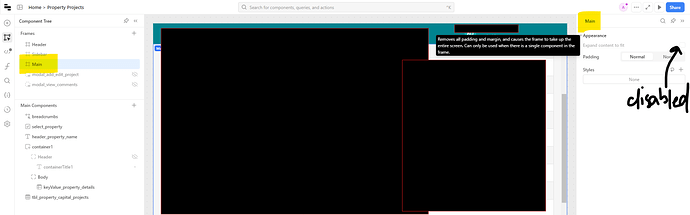
If you've set your Retool Table (new) component's height to Auto and it's still showing a scrollbar, you're not alone. This is a known bug affecting Retool Cloud users — and it's one of the more frustrating ones because the setting looks correct but doesn't behave as expected. The root cause of the Retool table component auto height scrollbar issue comes down to a max-height: 100vh constraint applied to the parent <div> that wraps your table, which overrides the Auto height setting entirely.
Why Does the Retool Table Still Scroll on Auto Height?
When you place a Table (new) component inside a Main frame that contains more than one component, Retool wraps the table in a container <div> with a max-height: 100vh CSS rule. Even though you've configured the table to expand to fit its content, the parent container caps the height at the viewport height — causing a scrollbar to appear inside the table itself instead of letting the page scroll naturally.
This means you end up with two scrollbars: one on the table, and one on the page. Neither is what you want. The only scroll should be the native browser/page scroll.
A secondary variant of this bug also affects tables with a summary row: when Auto height is enabled, the summary row is not accounted for in the height calculation, causing a small scrollbar to appear just to reveal that last row.
Who Is Affected?
- Users on Retool Cloud (Business Plan and others)
- Apps using the
Table (new)component — not the legacy table - Layouts where the Main frame contains more than one component alongside the table
- Tables with enough rows to extend past the viewport height
- Tables using a summary row with Auto height enabled
The Quickest Fix: Custom CSS Override
The most reliable workaround right now is to override the max-height constraint using Retool's Custom CSS field. Here's how to do it:
- Open your Retool app in the editor.
- Click on the App settings (the gear icon or the canvas-level settings panel).
- Find the Custom CSS input field.
- Add the following rule, replacing
tbl_your_table_namewith the actual component ID of your table:
div[id^=tbl_your_table_name] { max-height: none !important; }
This targets the specific wrapper <div> Retool generates for your table component and removes the viewport height cap. The !important declaration is necessary to override Retool's internal styles. Once applied, your table will expand to its full content height and the internal scrollbar will disappear — leaving only the page-level scroll.
To find your table's component ID: select the table in the editor and look at the top of the right-hand properties panel. The ID typically follows a pattern like tbl_component_name.
Alternative Workaround: Wrap the Table in a Container
If you'd rather avoid custom CSS, there's a structural workaround using Retool's built-in Container component:
- Add a
Containercomponent to your canvas and remove its header, footer, margin, and padding. - Place your
Table (new)component inside the container. - Enable Expand content to fit on the container.
- Resize the container to the height you want the table to occupy.
The caveat here is that this approach works better when you're okay with a fixed container height. If your goal is true Auto height — where the table grows with its data and the page scrolls — this method is less ideal than the CSS fix above.
The Summary Row Bug
If your table uses a summary row and you're seeing a small scrollbar appear at the bottom even with Auto height enabled, this is a separate (but related) bug. Retool's Auto height calculation doesn't currently account for the summary row's height, so the table renders just slightly too short. The same custom CSS fix above resolves this as well, since removing the max-height constraint lets the table size itself correctly around all of its content rows including the summary.
Current Status
This has been reported to Retool's engineering team as a confirmed bug. There is no native fix available in the UI as of the time of writing. Until Retool patches the underlying max-height: 100vh behavior for the Table (new) component in multi-component layouts, the custom CSS override is the most direct and stable solution.
If you're hitting this bug, the one-line CSS fix is safe to use in production. It's scoped to a specific component ID, so it won't affect other tables or components in your app. Keep an eye on Retool's changelog for a platform-level fix — but until then, this workaround gets the job done.
Ready to build?
We scope, design, and ship your Retool app — fast.