Guides
Retool Table Column Width: How to Auto-Fit and Manage Sizing
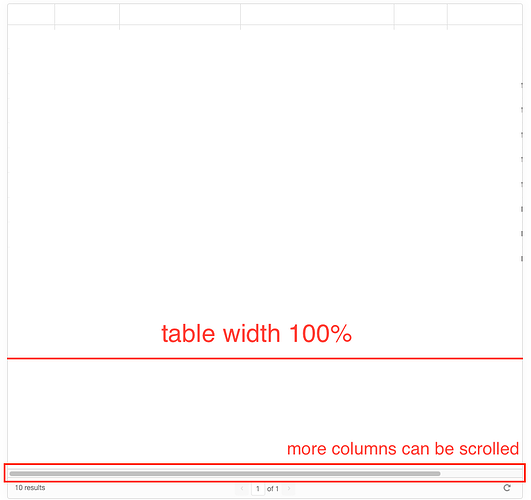
If you've ever built a Retool app with a wide table and found yourself fighting with Retool table column width auto-fit, you already know the frustration. Your table has seven columns, the browser window is a reasonable size, and yet a horizontal scrollbar appears — forcing users to scroll just to see their own data. This is a well-documented pain point in the Retool community, and this guide covers exactly what's happening, what your options are today, and how to make the experience as smooth as possible for your users.
Why Retool Tables Don't Automatically Fit Column Widths
Retool's table component renders columns at fixed pixel widths by default. When the total width of all columns exceeds the container size, the table overflows and a horizontal scroll is introduced. Unlike a spreadsheet application or a modern CSS grid, Retool does not natively redistribute column widths to fill the available table container. This is a known limitation — the Retool team has acknowledged it as a feature request, not a bug — so there's no config toggle buried in the settings panel you've simply missed.
What Happens When Users Manually Resize Columns
Retool does allow users to drag column borders to manually resize them at runtime. The problem is that these manual adjustments are not persisted. Every time a user reloads the app, column widths reset to their defaults. For teams where users spend 10+ minutes arranging their table view before they can even start working, this is a serious productivity drain. It also creates inconsistency across users — one person's perfectly tuned layout is invisible to the next person who opens the same app.
Current Workarounds for Auto-Fitting Table Column Widths in Retool
Until Retool ships native dynamic column sizing, here are the most practical approaches being used in production Retool apps today:
- Set fixed column widths manually in the table settings. Open the table component, navigate to the
Columnstab, and set a pixel width for each column. This is tedious but gives you predictable results. For tables with predictable content lengths (e.g., status flags, IDs, dates), this is often the fastest fix. - Reduce the number of visible columns. Use the
Hiddentoggle on each column in the column settings to suppress columns that aren't critical for the primary workflow. Fewer columns means less overflow. You can also wire aSelectcomponent to a transformer that filters which columns are passed into a dynamic column definition. - Use dynamic columns with a width field. If you're using
Dynamic column settings(passing a JSON array to configure columns programmatically), you can include awidthkey in each column object. This lets you control widths in code rather than through the UI — and more importantly, it lets you drive those widths from a data source. - Persist user preferences in a database. This is the most complete solution. When a user finishes arranging their columns, capture their preferred widths and store them in a database table (e.g., a
user_preferencestable keyed byuser_idandapp_id). On app load, query those preferences and inject them into your dynamic column settings. The user's layout is restored automatically every session. - Use percentage-based widths via dynamic columns. In your dynamic column config array, set width values as percentages of the container rather than fixed pixels. This won't work perfectly in all Retool versions, but many teams report it produces more responsive layouts — especially when the table is inside a module or a tab panel that changes size based on context.
How to Persist Column Widths Using Dynamic Column Settings
Here's a practical pattern for saving and restoring column widths. First, define your columns programmatically by passing an array to the dynamicColumns property of your table:
[{ "key": "company_name", "width": 200 }, { "key": "status", "width": 100 }, { "key": "score", "width": 80 }]
Next, create a query — for example, getUserColumnPrefs — that pulls the stored widths for the current user from your database. Merge those stored widths into your default column config using a transformer:
const defaults = [...]; const prefs = {{ getUserColumnPrefs.data }}; return defaults.map(col => ({ ...col, width: prefs[col.key] ?? col.width }));
Finally, add a button or an onChange handler that writes the current column state back to your database whenever the user adjusts their layout. This closes the loop and gives users a persistent, personalized table experience.
What to Expect From Retool in the Future
The Retool team has flagged automatic column width fitting as a feature request with significant community demand. Multiple users across the original community thread have added their support for both dynamic column width control and auto-fit behavior based on table container size. As Retool continues to invest in the table component — which received a major overhaul with the new Table component — it's reasonable to expect more granular layout controls to land over time. Keep an eye on the Retool release notes and the community changelog for updates.
The Bottom Line
Native auto-fit for Retool table column widths doesn't exist yet, but you're not without options. For quick wins, set fixed widths manually or reduce visible columns. For production-grade apps, use dynamic column settings with a database-backed preference system to give your users a consistent, personalized layout every time they load the app. It's a bit more setup upfront, but it eliminates one of the most common sources of friction in data-heavy Retool tools.
Ready to build?
We scope, design, and ship your Retool app — fast.