Guides
Retool Table Column Width: What Works and What Doesn't
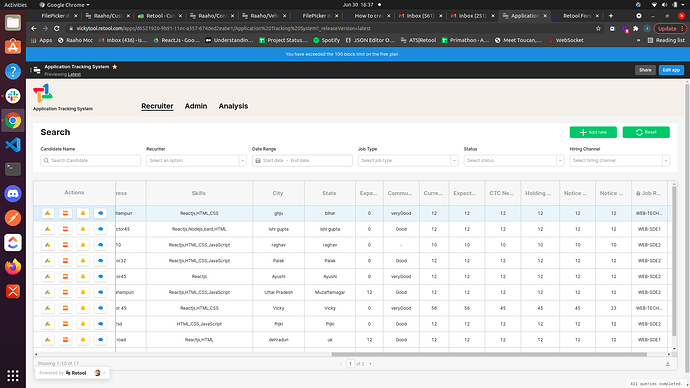
If you've been trying to set a fixed Retool table column width and can't figure out why nothing sticks, here's the short answer: as of now, Retool's built-in table component does not natively support fixed column widths. You can drag columns to resize them in the editor, but those widths can reset unexpectedly — and there's no property panel option to pin a column to an exact pixel width. This is a known limitation that has frustrated a large number of Retool builders, especially those working with data-dense tables.
Why Retool Table Column Widths Keep Resetting
This is one of the most common complaints in the Retool community. Builders spend considerable time manually dragging column widths into place during edit mode, only to find those widths revert to their defaults after saving, refreshing, or redeploying the app. This appears to be a bug — or at minimum, an unsupported behavior — where the editor does not reliably persist manually dragged column widths. If your table component keeps snapping back to default widths, you are not misconfiguring anything. The feature simply does not work consistently.
Does Retool Support Fixed Column Widths?
No — at least not with a dedicated "fixed width" property. Retool's table component does not expose a column-level width setting in the way that most builders expect. There is no input field where you can type 120px for a given column and have it reliably hold. The Retool engineering team has acknowledged this gap and logged it as a feature request. Until it ships, you're working around the limitation.
What You Can Do Right Now: Practical Workarounds
While a first-class fixed-width feature is still pending, there are a few approaches that can meaningfully improve your table layout:
- Use the Multiline Text column type. In your table's column settings, switch the column type to
Multiline Text. This allows content to wrap within the cell rather than overflow or get clipped. It won't fix the width, but it ensures users can actually read the full value without needing to know they can drag a column. - Enable Dynamically Adjust Row Height. Under your table's
Layoutsettings, turn on Dynamically adjust row height. Combined with theMultiline Textcolumn type, this makes cell content visible even when column widths are narrow. It's not a substitute for fixed widths, but it solves the immediate problem of hidden values. - Reduce the number of visible columns. If you're working with a table that has a large number of columns and horizontal scrolling is painful, consider hiding lower-priority columns by default and surfacing them through a column visibility toggle or a separate detail view. This keeps the default view clean without requiring precise column widths.
- Limit the checkbox/selection column. If you're using the
checkbox columnfor row selection (enabled via the "use checkbox column for selection" toggle), be aware that this column can expand awkwardly. There's no direct fix, but minimizing the number of always-visible columns around it can reduce the visual impact. - Use a custom HTML or iframe component. For teams with specific layout requirements, rendering the table data inside a custom
HTMLcomponent using a standard HTML<table>with inline styles gives you full control over column widths. This is a heavier lift but is the only way to truly guarantee fixed widths today.
The Per-User Column Width Problem
Several builders have raised a related issue: ideally, column widths should be configurable per user. The expectation is that when User A resizes a column, that preference is saved only for them — and User B sees the app's default layout. This is a reasonable UX pattern borrowed from tools like Airtable and Notion, but Retool does not currently support it. There is no built-in mechanism to persist user-level table preferences. If this matters for your use case, one workaround is to save column width preferences to a database or Retool's localStorage and reload them on app start using a Query that updates a transformer or a component's default state — though this requires meaningful custom logic.
How to Set Up the Multiline Text Workaround Step by Step
- Open your app in Retool's editor and select the
tablecomponent. - In the right-hand panel, navigate to the Columns section and click the column you want to fix.
- Change the Column type dropdown from
AutotoMultiline Text. - Close the column settings and go to the Layout tab in the table's property panel.
- Toggle on Dynamically adjust row height.
- Save and preview — column content should now wrap rather than clip.
What to Expect When Retool Adds Fixed Column Widths
The Retool team has confirmed this is on their radar. When fixed column width support ships, expect it to appear as a per-column width input in the Columns configuration panel — likely accepting pixel or percentage values. Until then, the workarounds above are your best bet. If this feature is blocking you, upvoting it in the Retool community forum is the fastest way to signal priority to the product team.
If you're building data-heavy internal tools on Retool and running into layout limitations like this, these are exactly the kinds of problems a specialized Retool agency can help you architect around — whether that means custom components, smarter data modeling, or hybrid approaches that keep your app performant and usable.
Ready to build?
We scope, design, and ship your Retool app — fast.