Guides
Retool Table Add New Row Button: Complete Guide
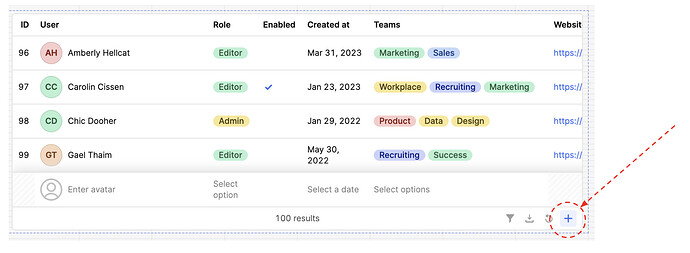
Retool's table add new row button is now live for all cloud users, and it's one of the most-requested table features the platform has shipped. Instead of building a separate form or modal to capture new records, users can click a + button directly in the table toolbar, fill in editable cells inline, and trigger a save — all without leaving the table. This guide walks you through the full setup, explains the newRows property, and shows you how to wire everything up in your Save Actions event handler.
How to Enable the Add New Row Toolbar Button in Retool
The button isn't on by default — you need to add it manually through the Table component's add-ons panel. Here's how:
- Select your Table component on the canvas to open its settings in the right panel.
- Navigate to Add-ons → Toolbar → Toolbar Buttons and click the (+) icon to add a new toolbar button.
- Choose the Add new row button type from the available options.
- Save your changes. A + button will now appear in the table's toolbar at runtime.
When a user clicks the + button, a blank row appears at the bottom of the table. The user can then edit any cell in that row — as long as the corresponding column is marked as editable in your table's column settings.
Understanding the newRows Property
Every change a user makes to the new row is tracked in a table property called newRows. You can reference this anywhere in your Retool app just like any other component property — for example, table1.newRows.
A few important things to know about newRows:
- It only contains editable column values. If a column is not editable, its value will not appear in
newRows. You'll need to handle non-editable field defaults yourself in your Save Actions event handler. - The property is plural intentionally. Retool has designed
newRows(notnewRow) to be future-proof for when the platform adds support for inserting multiple rows at once — a spreadsheet-style workflow that's already on the roadmap. - It resets after a successful save. Once your Save Actions handler runs and completes, the new row is cleared from the UI.
How to Wire Up the Save Actions Event Handler
The most common question after enabling this feature is: how do I actually save the new row to my database? The answer is the Save Actions event handler on the Table component. Here's the recommended pattern:
- Open your Table's event handlers and add a Save Actions event.
- Create or reference a query (e.g.,
insertNewRecord) that runs anINSERTstatement against your database. - In the query, use
{{ table1.newRows[0] }}to access the values the user entered. For example, if your table has anamecolumn, reference it as{{ table1.newRows[0].name }}. - For any columns that are not editable (like auto-generated IDs, timestamps, or user metadata), set those values directly in the query using other Retool properties — for example,
{{ current_user.email }}or amoment().toISOString()expression. - Trigger a refresh of your main data query after the insert so the table reflects the new record.
A minimal SQL example for a PostgreSQL resource might look like this:
INSERT INTO contacts (name, email, created_at) VALUES ('{{ table1.newRows[0].name }}', '{{ table1.newRows[0].email }}', NOW());
Which Cells Can Users Edit in the New Row?
Users can only edit cells in the new row if the column itself is set to editable in your table configuration. This is intentional — it keeps the new row behavior consistent with inline editing behavior for existing rows. If you need a field to be fillable only during row creation (but not editable after the fact), that use case isn't natively supported yet, but it's worth submitting as feedback to the Retool team.
Can You Make a Column Required When Adding a New Row?
Not yet. As of the current release, there is no built-in way to mark a column as required when using the add new row button. Retool has acknowledged this as a feature request. In the meantime, you can add a validation step in your Save Actions event handler — for example, using a Run Script action to check table1.newRows[0].name before the insert query fires, and showing an error notification if it's empty.
Availability and On-Prem Rollout
The add new row toolbar button is currently live for 100% of Retool cloud users. If you're on a self-hosted instance, watch for it in on-prem version 3.46-edge and 3.52-stable. If you're not seeing the feature yet on cloud, try hard-refreshing your browser or checking that your organization is on the latest release.
What's Coming Next
The newRows property is already named with the future in mind. Retool is planning to support adding multiple rows at once in a single table session — similar to how you'd paste or type into a spreadsheet. If that's a workflow you need, drop a comment in the original community thread to signal demand. The team is actively reading responses.
For now, the single-row add flow covers the majority of internal tool use cases — admin panels, CRM-style tools, inventory management, and any app where operators need to quickly add records without switching context to a separate form.
Ready to build?
We scope, design, and ship your Retool app — fast.