Tutorials
Retool Number Input Step Size: How to Use Decimal Steps
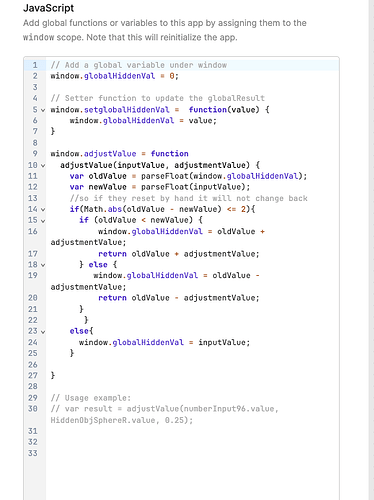
If you've tried to set a Retool number input step size to a decimal like 0.1 or 0.01, you've probably noticed there's no built-in option for it. The stepper arrows on Retool's Number Input component increment and decrement in whole units of 1 — and as of now, that's not configurable in the component settings. This is a known gap in the platform, with customers actively requesting it. In the meantime, there are two practical workarounds that can get you shipping today.
Why Retool's Number Input Doesn't Support Decimal Steps Natively
Retool's Number Input component is built for simplicity, but that means some lower-level HTML input attributes — like the step attribute on a native <input type="number"> — aren't exposed in the component settings panel. The Retool team has acknowledged this as a feature request and it's on their radar, but it hasn't shipped yet. Until it does, you need to work around the limitation yourself.
Workaround 1: HTML Component with a Custom Step Attribute
Retool's HTML component lets you drop in raw HTML, which means you can render a native <input type="number" step="0.1"> directly. You can even add inline CSS to make it visually match the rest of your Retool UI.
The catch: you cannot read the value of an HTML component in a Retool query or pass it to another component. This makes it purely cosmetic — useful if you only need to display a decimal stepper but don't need to use the value downstream. For most real use cases, this won't cut it.
Workaround 2: JavaScript Query to Intercept and Override the Step (Recommended)
This is the workaround that actually works end-to-end. The idea is to intercept the Number Input's onChange event and use a JS query to correct the value before it propagates. Here's how to set it up step by step.
- Add your primary
Number Input— call itnumberInput1. This is the one the user sees and interacts with. - Add a second
Number Input— call itnumberInput2. Set its default value to matchnumberInput1's value. Hide this component — it acts as a memory register to store the previous value. - Create a new JS query — call it something like
enforceDecimalStep. Set it to trigger onnumberInput1'sonChangeevent.
Paste the following into your JS query:
var oldValue = numberInput2.value;
var newValue = numberInput1.value;
if (newValue > oldValue) {
numberInput1.setValue(oldValue + 0.1);
} else {
numberInput1.setValue(oldValue - 0.1);
}
This compares the new value against the stored old value, figures out whether the user clicked up or down, and then snaps the value to the nearest 0.1 increment. After the query runs, update numberInput2's value to match numberInput1 so it's ready for the next change event.
You can swap 0.1 for any step size you need — 0.01, 0.25, 0.5, whatever fits your use case. The value on numberInput1 remains fully accessible to any query in your app, just like a normal number input.
Known Issue: Rapid Clicking Causes Step Lag
If your users click the stepper arrows quickly in succession, the JS query may not finish executing before the next click fires. This means clicking up three times fast might only register two increments. It's a race condition between the onChange events and the query execution time.
A few things that help reduce this problem:
- Keep your
enforceDecimalStepquery as lean as possible — no unnecessary logic or chained queries inside it. - Consider debouncing the trigger if your Retool version supports it.
- As an alternative UX pattern, hide the native stepper arrows entirely using CSS and replace them with your own Retool
Buttoncomponents. Each button runs a dedicated JS query that adds or subtracts the step value directly. This gives you full control over execution order and eliminates the race condition.
Hiding the Stepper Arrows with Custom CSS
If you go the custom-button route, you'll want to hide the default up/down arrows on the number input so users don't have two ways to change the value. You can do this with a custom CSS class on the component:
input[type=number]::-webkit-inner-spin-button,
input[type=number]::-webkit-outer-spin-button {
-webkit-appearance: none;
margin: 0;
}
Add this in your app's custom CSS panel, or scope it to a specific component using Retool's component-level style options.
When Will Retool Add Native Decimal Step Support?
The Retool team has flagged this as a known feature request and has bumped it to the engineering team multiple times based on customer demand. It's not on a confirmed roadmap yet, but the interest is documented. If you need this feature, add your voice to the community thread — customer +1s do move the needle.
Until then, the JS query workaround above is the most reliable path. It keeps the value accessible to your queries, it's easy to replicate across multiple inputs, and it takes about five minutes to set up once you've done it once.
Ready to build?
We scope, design, and ship your Retool app — fast.