Guides
Retool New Table Button Column: Row Actions & Workarounds
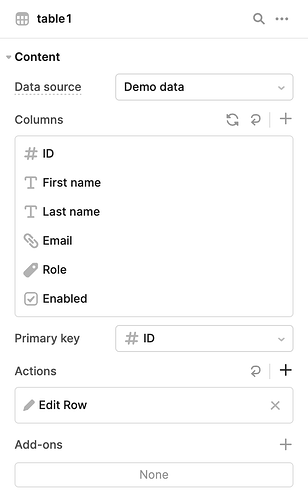
If you've migrated to Retool's new Table component and can't figure out how to add a button column, you're not alone. The legacy table made it simple — add a custom column, set the type to Button, done. The new Table component removed that option entirely and replaced it with a different pattern. This guide covers every approach available today, including workarounds for keeping buttons permanently visible in every row.
Why the New Retool Table Has No Button Column Type
Retool's redesigned Table component deliberately replaced custom Button columns with a concept called Row Actions. Instead of occupying a dedicated column, row actions appear as icons on the right side of each row when a user hovers over it. The goal was a cleaner default UI — but it introduced a discoverability problem. Users who don't know to hover may never find the action at all, and designers who want a permanently visible button have no obvious out-of-the-box option.
How to Add Row Actions in the New Retool Table
Row Actions are the official replacement for button columns. Here's how to set them up:
- Select your
Tablecomponent on the canvas to open the inspector panel on the right. - Navigate to the Content section inside the inspector.
- Scroll down to find the Row Actions area and click Add action.
- Give the action a label and choose an icon to represent it.
- Open the Event handlers for that action and configure what happens on click — for example, opening a modal, triggering a query, or navigating to another page.
Row Actions work well for most use cases like opening a detail modal or triggering a delete confirmation. The main limitation: the action icons are only visible on hover by default, and as of now there is no native toggle to make them permanently visible.
How to Make Table Action Buttons Always Visible
This is the most common follow-up question after discovering Row Actions — and unfortunately, there is no single native setting to pin action buttons into a permanent column. But there are three practical workarounds.
Workaround 1: Use a Tag Column as a Clickable Button
This is the quickest workaround and requires no custom code. Add a custom column to your table and set its type to Tag. Then:
- Set the Mapped Value to a hardcoded label string, such as
"Open"or"Edit". You can also include an icon by using Retool's icon syntax. - Style the tag color to make it look like a button (e.g. blue background, white text).
- Add a Click cell event handler to that column and wire it to your desired action — open a modal, run a query, etc.
The Tag column is always visible, renders inline with the row data, and gives users a clear visual affordance that something is clickable. It's not a true button, but it gets the job done fast.
Workaround 2: Use a Link Column Type
If your action is navigation-based (e.g. going to a detail page), the Link column type is purpose-built for this. Set the column type to Link, map the display text, and attach a Click cell event handler. Like the Tag approach, the link is always rendered and visible without hovering.
Workaround 3: Use an HTML Column with a Click Handler
For maximum design flexibility, use a custom column set to the HTML type. You can write any HTML you want in the column value — including a styled button element — and then attach a Click cell event handler to handle the interaction. For example, your mapped value might be:
<button class="action-btn">Edit</button>
Pair this with Custom CSS on the table to style the .action-btn class however the designer needs. Because you control the HTML, you can even make the class name dynamic based on row data — useful for conditional styling like highlighting urgent rows differently.
Choosing the Right Approach
- Row Actions — Best for secondary or destructive actions (delete, archive) where hover-reveal is acceptable UX.
- Tag column workaround — Best for a quick, always-visible CTA with no custom code required.
- Link column — Best for navigation actions that fit the semantics of a link.
- HTML column — Best when the designer has specific visual requirements or you need conditional styling per row.
What's Coming from Retool
According to Retool staff in the community thread that inspired this post, there are open internal feature requests to allow action buttons to be pinned as a permanent column. If this is a blocker for your project, the workarounds above will cover you in the meantime — and the HTML column approach in particular is robust enough to handle even complex design specs.
The bottom line: Retool's new Table component requires a different mental model for buttons. Once you know that Row Actions replaced the old Button column type, and that Tag, Link, and HTML columns fill the gap for always-visible interactions, you have everything you need to build exactly what your designer is asking for.
Ready to build?
We scope, design, and ship your Retool app — fast.