Guides
Retool Key Value Component v2: What's New and How to Use It
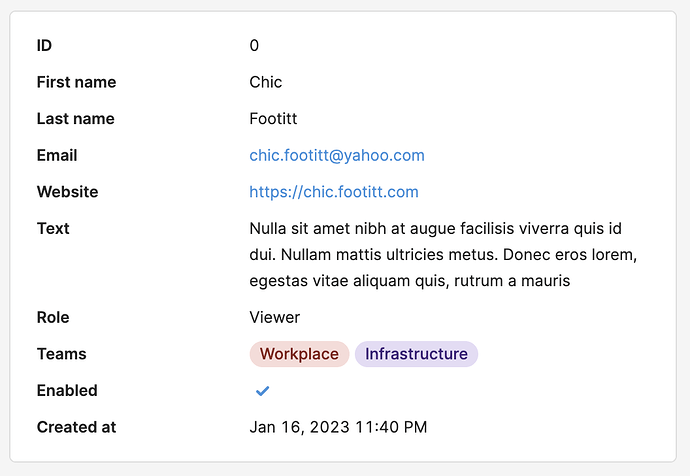
Retool's Key Value component v2 is a significant upgrade over the legacy version, bringing the kind of display flexibility most teams were previously hacking together with custom CSS. If you've been frustrated by the limitations of the old Key Value component — or you've been waiting for a cleaner way to display record details in your internal tools — this guide covers everything you need to know about the new component, how to configure it, and what the migration path looks like.
What Is the Retool Key Value Component?
The Key Value component is used to display a set of labeled fields from a data object — think order details, user profiles, or configuration records. Instead of building a custom layout with text labels and queries, you drop in a Key Value component, point it at your data, and it renders a clean, readable summary view. The v2 release, announced in November 2023, takes this concept much further with new layout options, value formatting, and interactivity features that bring it closer in power to the Table component.
What's New in Key Value v2?
The new Key Value component ships with a substantially expanded feature set. Here's a breakdown of the most important additions:
- Rich value display types: Format values as dates, tags, avatars, images, links, and more — the same display options available in the
Tablecomponent. - Click handlers on values: You can now attach click events directly to individual values, enabling drill-down navigation, modals, or triggering queries.
- Layout modes: Choose between
single-column,multi-column, orwrapmode to match your UI needs. - Text color control: Customize the color of value text directly from the component settings panel.
- Label position control: Configure whether labels appear above, beside, or in another position relative to their values.
- Auto-configuration: Drop the component in with no setup — it automatically generates human-readable labels from your data keys and guesses the appropriate value format.
- Saved properties: When you need more control, "save" individual properties to manually set their order, labels, placeholders, and formatting.
How to Configure the Retool Key Value v2 Component
Getting started is straightforward. Here's the typical setup flow:
- Step 1 — Add the component: In the Retool canvas, search for
Key Valuein the component panel. Make sure you're selecting the new v2 version, not the legacy one. - Step 2 — Connect your data: Set the
dataproperty to a JavaScript object or the result of a query. For example:{{ getUserQuery.data[0] }}. The component will immediately render auto-labeled key-value pairs. - Step 3 — Choose a layout mode: In the Inspect panel, set the layout to
single,multi, orwrapdepending on how many fields you're displaying and your available space. - Step 4 — Save and customize properties: Click the "Save" button next to any auto-generated property to lock it in and unlock manual controls — custom label text, display format (e.g.,
date,tag,image), placeholder text, and ordering. - Step 5 — Add click handlers: For any value that should be interactive, expand its settings and add an event handler under the
onClicktrigger. Wire it to a query, navigation action, or component method.
Can You Migrate from the Legacy Key Value Component?
This is the most common question after the launch: is there an automatic upgrade path from the old Key Value to v2? The short answer is no — there is currently no one-click migration like some teams remember from earlier Table component upgrades. According to Retool's team, the legacy Key Value component will remain available and won't be deprecated, so your existing apps won't break. But if you want to take advantage of the new features, you'll need to add the new Key Value component from scratch and reconnect your data and event handlers manually. For most use cases this is a quick swap, especially since the v2 component auto-configures itself on first load.
Can Key Value Values Be Edited Like Table Cells?
As of the v2 launch, the Key Value component does not support inline editing of values the way the Table component does with editable columns. If you need users to be able to modify individual fields, the current approach is to pair the Key Value display with a Form component or a Modal containing inputs, triggered by one of the new click handlers on the values. This gives you a clean read/edit pattern without sacrificing the polished summary view.
Who Should Use Key Value v2?
If you're building detail pages, record summaries, or inspection panels in Retool, the new Key Value component should be your default choice over raw text components or custom HTML. The auto-label generation alone saves meaningful setup time, and the layout flexibility means you're not locked into a single rigid format. Teams that were previously writing custom CSS to style the old Key Value component will find that the new configuration panel handles the most common styling needs out of the box.
Availability
The Key Value v2 component is available now for all Retool cloud organizations. On-premise deployments will receive the component in a future release — check your Retool version notes or the official docs for the specific version that includes it.
For full configuration details and property reference, see the Getting Started with the Key Value Component page in the official Retool documentation. If you're running into edge cases or need help wiring up click handlers to complex query flows, that's exactly the kind of thing our team builds every day — feel free to reach out.
Ready to build?
We scope, design, and ship your Retool app — fast.