Tutorials
How to Generate a PDF from a Template in Retool
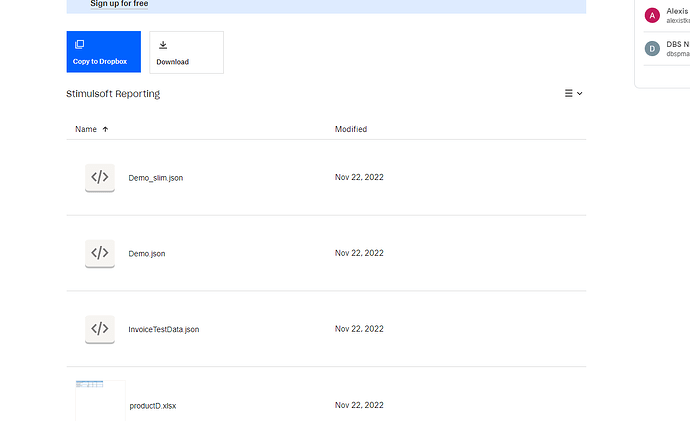
If you need to generate a PDF from a template in Retool — say, a dynamic invoice, a report, or a customer-facing document — there's no built-in component that does it out of the box. What does exist, thanks to the Retool community, is a battle-tested custom component that stitches together Handlebars.js and jsPDF to render templated HTML straight into a downloadable PDF. Here's everything you need to know to get it working.
What This PDF Component Actually Does
The component is built around three parts working together inside a Retool module:
- A PDF Viewer that displays the rendered output as a base64 string — it does nothing else.
- A custom component that takes your Handlebars template, a CSS string, and a JSON data object, then uses
jsPDFto render and export the PDF. - A Refresh button that manually triggers a re-render. Because the PDF does not automatically redraw when your data or template changes, this button is required.
The output is a base64-encoded PDF blob stored in customHTMLPDF.model.pdf_blob, which you can display in the viewer or pipe directly into a download action.
Why Handlebars Instead of Plain HTML?
Handlebars lets you bind dynamic JSON data to your template using a simple syntax — loops, conditionals, helper functions. The catch in Retool is that both Retool and Handlebars use {{ }} curly braces, which creates a direct conflict. The component solves this by translating double square brackets [[ ]] into Handlebars expressions at render time. So everywhere you would normally write {{firstName}} in a Handlebars template, you write [[firstName]] instead.
Built-In Handlebars Helpers
The component ships with three helpers you can use immediately in your templates:
currency— converts a numeric value to a formatted US dollar stringsumTotal— sums an array of objects by theirtotalproperty and returns the result in dollarssumQuantity— sums an array of objects by theirquantityproperty
These are especially useful for invoice-style documents. If you need custom helpers, you'll need to modify the custom component's JavaScript directly — there's no dynamic helper injection yet.
How to Pass Data Into the Template
You pass three inputs to the custom component: your Handlebars template string, a CSS string for styling, and a JSON object containing the data to bind. A minimal example for an invoice might look like:
- Template:
<h1>Invoice for [[clientName]]</h1> - Data:
{ "clientName": "Acme Corp", "lineItems": [...] } - CSS: standard CSS string targeting your template's elements
The component compiles the template against the data using Handlebars, then passes the resulting HTML into jsPDF for rendering. The current implementation is hardcoded to A4 portrait in pixel units — if you need different page sizes or orientations, you'll need to modify the custom component directly.
Handling Images: Use Base64, Not URLs
This is the most common gotcha. You cannot reliably use external image URLs in your templates due to CORS restrictions. Even if your S3 or Azure Blob Storage bucket has CORS configured, the browser security context inside the custom component often blocks the request anyway. The workaround is to convert your images to base64 strings and embed them directly in your JSON data object. You can use a tool like base64-image.de for quick conversions. In your template, reference the base64 string just like any other data field: <img src="[[logoBase64]]" />.
Creating a Custom Download Button
By default, the PDF viewer component includes a download button in its top bar, but you can't control the filename from there. To name your PDFs dynamically, hide the default bar and create your own download button using this utility call:
utils.downloadFile({base64Binary: customHTMLPDF.model.pdf_blob}, pdfTitle.value, 'pdf');
Here, pdfTitle.value is a text input or JavaScript expression that resolves to the filename you want. This gives you full control over naming — useful when generating client-specific or date-stamped documents.
Pagination and Page Breaks
jsPDF handles pagination automatically in the sense that it will split content across pages, but CSS page-break rules like page-break-after: always do not work. The library only reliably prevents page breaks from occurring mid-text-block. If you need precise pagination control, the component's author suggests exploring pdfMake as a potential alternative, though it remains less mature than jsPDF.
Hyperlinks in Generated PDFs
Standard HTML anchor tags (<a href="...">) render visually in the PDF — the text will appear underlined and blue — but they are not clickable. This is a known limitation of the HTML-to-PDF rendering pipeline used here. There is no community-confirmed workaround at this time using this component. If clickable links are a hard requirement, you may need to investigate jsPDF's native link API and extend the custom component's JavaScript accordingly.
What You Can Improve
The component works well for common use cases but leaves room for extension. Some areas worth investing in if you maintain this internally:
- Add inputs for page size, orientation, and margins so non-developers can configure the output without touching code
- Build a direct print action that skips the download step
- Explore passing custom Handlebars helpers dynamically as part of the component's data contract
- Evaluate pdfMake as a drop-in replacement for better pagination support
For most internal tool use cases — invoices, summaries, data exports — this component gets you to a working PDF pipeline in Retool without needing an external service or a backend endpoint. Start with the sample invoice app, swap in your own template and data, and iterate from there.
Ready to build?
We scope, design, and ship your Retool app — fast.