Guides
How to Set a Retool Full Width Canvas (2024 Guide)
If you're building a Retool full width canvas app for a big-screen dashboard or a data-heavy internal tool, you've probably noticed that Retool constrains the canvas to a centered max-width by default. That's fine for most apps, but it's a real problem when you need every pixel on a wide monitor. Fortunately, Retool has evolved from a CSS hack into a proper UI setting — and this guide covers every method, from the cleanest modern approach to the legacy CSS fixes that still matter for self-hosted instances.
The Easiest Fix: Use Retool's Built-In Canvas Width Setting
If you're on a recent version of Retool Cloud, you don't need to touch CSS at all. Retool added a native canvas width setting directly in the app editor:
- Open your app in the Retool editor.
- Click the three-dot menu (⋯) in the top-right corner.
- Select App settings.
- Find Set canvas max width and enter your desired value — or clear it to go truly full width.
This is the safest and most future-proof method. It works in both the editor and the viewer link, and it requires zero code. If this option is available to you, stop here and use it.
Why You Might Still Need a CSS Workaround
Not everyone is on the latest Retool Cloud version. If you're running a self-hosted or on-premise Retool instance, or if you're on an older version that predates the UI setting, you'll need to inject CSS manually. Retool also has a known bug (fixed in v2.111.0) where the canvas width setting didn't apply to public-facing app links — only to the editor and internal viewer. For anyone below that version, CSS is still the answer.
How to Inject CSS into a Retool App
You can add custom CSS to Retool in two places:
- Per-app: In the app editor, open the ⋯ menu → Scripts and Styles and paste your CSS into the Styles tab.
- Globally (all apps): Go to Settings → Advanced in your Retool instance and add CSS there.
- Inline via a Text component: Paste a
<style>block directly into a Text component — useful for quick testing, but not recommended for production.
CSS Snippets for Every Retool Version
Retool's internal CSS class names change frequently. Use the snippet that matches your Retool version, and treat any class-name-based selectors as potentially brittle.
Oldest versions — targets the original .retool-canvas class:
<style>
  .retool-canvas { max-width: none !important; }
</style>
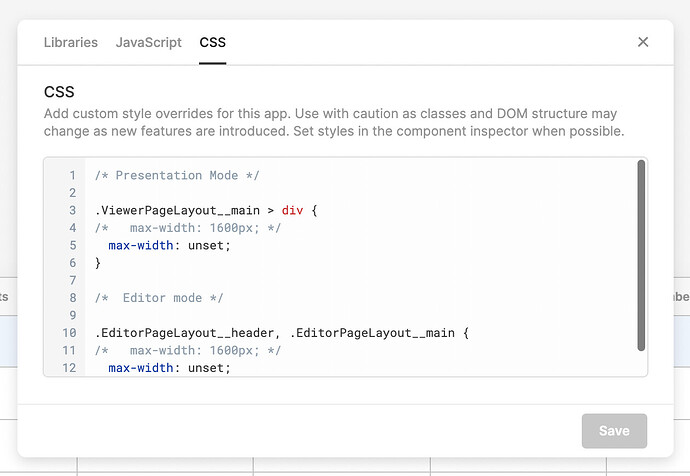
Intermediate versions — targets the editor and presentation layout classes:
/* Presentation / Viewer Mode */
.ViewerPageLayout__main > div {
  max-width: unset;
}

/* Editor Mode */
.EditorPageLayout__header,
.EditorPageLayout__main {
  max-width: unset;
}
You can also swap unset for a specific pixel value like 1600px if you want a wide-but-not-unlimited canvas.
CSS custom property approach — more resilient than targeting class names directly:
:root {
  --retool-canvas-max-width: 10000px;
}
This targets Retool's internal CSS variable rather than a generated class name, so it's less likely to break on a Retool update. Use a very large pixel value (like 10000px) to effectively remove the width constraint. That said, Retool's team notes that even CSS variable names can change, so always test after upgrading.
Fixing Full Width on Public Retool App Links
If your app looks correct in the editor and internal viewer but snaps to full browser width on the public link, you've hit the bug that was patched in Retool v2.111.0. If you can't upgrade immediately, you can force a consistent width on the public view with more targeted CSS:
._tEOXQ, ._1edro {
  min-width: -webkit-fill-available !important;
}
Warning: The class names above (._tEOXQ, ._1edro) are auto-generated and will differ between apps and Retool versions. You'll need to inspect your own app's DOM using browser DevTools to find the correct selectors. This is a temporary workaround — upgrading to v2.111.0 or later is the real fix.
Which Method Should You Use?
- On Retool Cloud (recent version): Use App settings → Set canvas max width. No CSS needed.
- Self-hosted, version ≥ 2.111.0: Use the UI setting, or the
--retool-canvas-max-widthCSS variable as a fallback. - Self-hosted, version < 2.111.0: Use the
ViewerPageLayout/EditorPageLayoutCSS snippet and plan your upgrade. - Public link width bug: Upgrade to
v2.111.0+, or use targeted class-name CSS as a temporary patch.
Final Notes
Making your Retool canvas full width is straightforward once you know which method applies to your version. The native UI setting is the cleanest solution and should be your first choice. For self-hosted teams on older versions, the CSS variable approach offers the best balance of simplicity and resilience. Avoid hardcoding auto-generated class names in production CSS unless you're prepared to revisit them after every Retool upgrade — they will change.
Ready to build?
We scope, design, and ship your Retool app — fast.