Tutorials
How to Export a Retool Table as Excel (xlsx)
If you've tried to export a Retool table as Excel and ended up with a broken CSV that Windows Excel can't parse correctly, you're not alone. This is one of the most common friction points Retool builders hit, and the fix is simpler than you'd expect — once you know where to look. This guide covers every approach, from the one-liner JS utility to multi-sheet .xlsx workbook exports for advanced use cases like Snowflake data pipelines.
Why CSV Downloads Don't Always Work in Excel on Windows
Retool's built-in table component includes a Download as CSV button out of the box. On macOS, opening that CSV in Excel usually works fine. On Windows, however, Excel's default delimiter and encoding settings frequently mangle the data — columns run together, special characters break, and the file looks like a mess. The root cause is that Excel on Windows doesn't always interpret UTF-8 CSVs correctly without a BOM (byte order mark). The solution isn't to fight with CSV settings — it's to export as a native .xlsx file instead.
Option 1: Use utils.exportData with the 'xlsx' Format
Retool's utils.exportData() function supports more than just CSV. You can pass 'xlsx' as the format argument and get a proper Excel file directly. Here's the syntax:
utils.exportData(table1.data, 'my-filename', 'xlsx')
Drop this into a JavaScript query and trigger it from a button click. Replace table1.data with the actual name of your table or query data source, and replace 'my-filename' with whatever you want the downloaded file to be called (without the extension — Retool appends .xlsx automatically).
- Supported format values:
'csv','tsv','xlsx' - Data source: can be a table component (
table1.data) or any query result (myQuery.data) - File name: can be dynamic — e.g.
textInput1.valueinstead of a hardcoded string
Option 2: Export Excel via an Event Handler (No Code Required)
If you'd rather skip writing a JS query entirely, Retool's event handler UI has you covered. This is the fastest path for simple exports:
- Select your Table component in the canvas
- Go to the Interaction tab in the right panel
- Add an event handler on a button or table action
- Set the action to Export data
- Choose xlsx as the file format
- Set your desired file name in the File name field
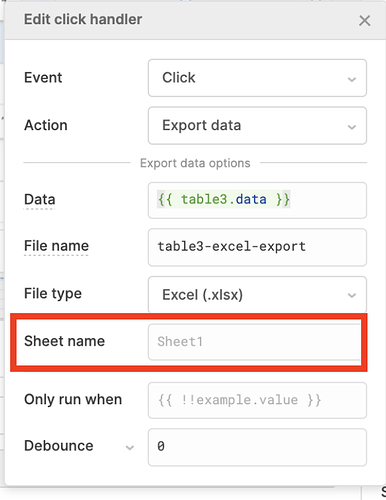
The event handler UI also exposes a Sheet name field — something that isn't directly settable via the utils.exportData() JS function. So if naming the worksheet tab inside the Excel file matters to you, the event handler is the easier route.
How to Set the Excel Sheet Name in Code
This trips people up. The utils.exportData() function does not expose a sheet name parameter — you can only set the file name. If you need to control the internal worksheet tab name programmatically, your options are:
- Use the event handler UI and fill in the Sheet name field manually or with a dynamic value
- Use the XLSX.js library for full workbook control (see below)
Advanced: Export Multiple Sheets into One Excel File Using XLSX.js
If you're pulling data from multiple queries — say, several Snowflake result sets — and need to combine them into a single .xlsx workbook with one worksheet per query, you'll need to reach for the XLSX library directly. Retool exposes it in JS queries. Here's a working pattern:
var wb = XLSX.utils.book_new();
wb.Props = { Title: textInputFileName.value, Subject: 'My Report', Author: 'Retool User', CreatedDate: new Date() };
var ws1 = XLSX.utils.aoa_to_sheet(query1.data);
XLSX.utils.book_append_sheet(wb, ws1, 'Sheet One');
var ws2 = XLSX.utils.aoa_to_sheet(query2.data);
XLSX.utils.book_append_sheet(wb, ws2, 'Sheet Two');
XLSX.writeFile(wb, textInputFileName.value + '.xlsx');
A few things to note with this approach:
- Use
XLSX.utils.book_append_sheet(wb, ws, 'Tab Name')— this is the correct way to add named sheets. Avoid manually pushing towb.SheetNamesandwb.Sheetsseparately, as it can cause inconsistencies. - Use
XLSX.writeFile()to trigger the browser download. AvoidXLSX.utils.downloadFile()— that's not a standard SheetJS API method and will throw an error. - Your query data should be an array of arrays (
aoa) or an array of objects. If it's already columnar from Snowflake, you may need to transform it first using a transformer.
Quick Reference: Which Export Method Should You Use?
- Simple one-table export, no sheet name needed:
utils.exportData(table1.data, 'filename', 'xlsx') - Simple export with a custom sheet tab name: Use the event handler UI with the Sheet name field
- Multiple sheets in one workbook from multiple queries: Use the
XLSXlibrary withXLSX.utils.book_append_sheet()andXLSX.writeFile()
Final Notes
The utils.exportData() function is the right tool for 80% of Retool Excel export use cases — it's clean, readable, and requires no external libraries. For more complex scenarios like multi-sheet workbooks or custom workbook metadata, the built-in XLSX library gives you full control. Either way, you no longer have to ship broken CSVs to Windows users. If you're building internal tools that hand off data to third-party platforms via Excel files, getting this export step right is worth the extra ten minutes.
Ready to build?
We scope, design, and ship your Retool app — fast.