Tutorials
Retool Dynamic Tabs in a Tabbed Container: The Workaround
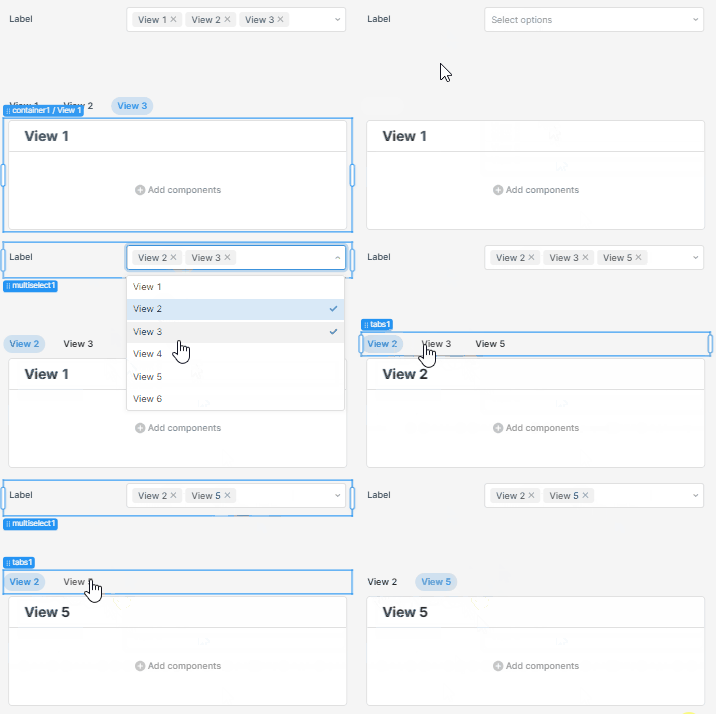
If you've ever tried to build a dynamic number of tabs in a Retool Tabbed Container, you've already hit the wall: Retool doesn't support it natively. The number of tabs in a Tabbed Container is static — you define them at build time, full stop. But if your data drives the number of tabs (say, one tab per user returned from a query, or one tab per product category), you need a workaround. This guide walks you through the best one available right now.
Why Retool's Tabbed Container Can't Do Dynamic Tabs
The Tabbed Container component in Retool is designed for a fixed set of views. Each tab is manually configured in the component editor, so there's no built-in way to tell Retool "give me as many tabs as there are rows in your_query.data." This is a known limitation that comes up constantly in the Retool community. The fix requires combining a few other components to replicate the behavior.
The Core Idea: List View + Tabs + Container
Instead of using a Tabbed Container, you'll assemble the same experience from three separate components: a List View, a Tabs component, and a Container inside the List View. The List View repeats a Container for every item in your data source. The Tabs component controls which one is visible. Together, they look and behave like a dynamic tabbed container.
Step-by-Step: Building Dynamic Tabs in Retool
- Step 1 — Add a List View component to your canvas. This is the engine of the workaround. It will render one instance of its contents per item in your data source. Read the List View docs before diving in — it uses a built-in
indexvariable that behaves differently from other components. - Step 2 — Add a Container inside the List View. This container will represent the content of each tab. Drop whatever components you need inside it — tables, forms, text, charts, etc. Use the List View's index and item variables to bind dynamic values to each component.
- Step 3 — Add a Tabs component to your canvas. Important: place it outside the List View, not inside it. Position it above the List View so it visually resembles a
Tabbed Container. This is your tab navigation bar. - Step 4 — Set the List View data source. In the List View's Data property, point it at whatever drives your tab count. For example:
{{your_query.data}}if you want one tab per query result row, or{{multiselect1.value}}if you're pulling from a multiselect component. The List View will render one Container for every item in that array. - Step 5 — Hide non-selected Containers. This is the critical step. In each Container's
Hiddenproperty, add logic that hides it when it doesn't match the currently selected tab. If your tab labels and container titles share the same values (e.g. both use"tab 2"), the logic looks like this:{{containerTitle1.value !== tabs2.value}}. Only the container whose title matches the selected tab will be visible — all others are hidden.
What This Looks Like in Practice
Imagine a query that returns a list of users — sometimes 3, sometimes 8, depending on filters applied. With this setup, your Tabs component shows one tab per user, your List View renders one Container per user, and only the container matching the active tab is shown. Switch tabs, and the right container appears. The tab count updates automatically whenever the query results change. No manual tab configuration needed.
Common Use Cases for Dynamic Tabs
- One tab per user, customer, or record returned from a database query
- One tab per selected item in a
Multiselectcomponent - One tab per product, project, or category that changes based on upstream filters
- Any scenario where the number of views depends on data you don't control at build time
A Simpler Alternative (With Trade-offs)
Another approach — shared by members of the Retool community — skips the List View entirely and uses a fixed number of views with components that update dynamically based on the selected tab, similar to how selectedRow works in a Table component. This is easier to set up, but it only works when you're okay with a fixed maximum number of tabs. If your tab count is truly variable and unbounded, the List View approach is the right one.
Tips for Getting This Right
- Make sure your tab label values and the data driving your
List Vieware consistent — they need to match for theHiddenlogic to work correctly. - Use the
currentSourceRowandi(index) variables inside theList Viewto bind per-tab content to the right data row. - If your tab labels come from a query field (e.g.
name), make sure theTabscomponent values are set to the same field so the comparison inHiddenresolves correctly. - The
List Viewcomponent stacks items vertically by default — adjust its layout settings to ensure only the visibleContainertakes up space, or use absolute positioning to layer them.
Bottom Line
Retool doesn't natively support a dynamic number of tabs in a Tabbed Container, but the List View + Tabs + Container pattern gets you there with full flexibility. It takes a few more steps to configure than dragging in a Tabbed Container, but once it's wired up, it responds to your data automatically — no manual tab management required. If you're building internal tools where the data shape changes at runtime, this is the pattern to know.
Ready to build?
We scope, design, and ship your Retool app — fast.