Guides
Retool Dynamic Column Settings: A Complete How-To Guide
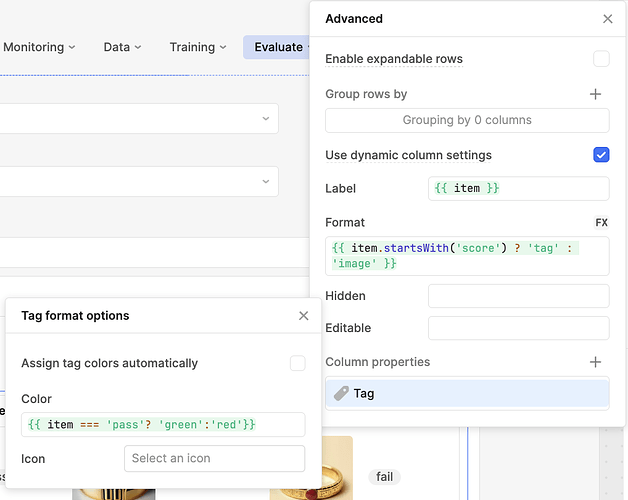
If you're building a Retool app where the same table needs to display data from more than one source — or where your underlying data schema is expected to grow over time — Retool dynamic column settings are the feature you need. Without them, switching data sources leaves your table rendering stale columns with no data, confusing end users and breaking the experience entirely. This guide covers exactly how to enable and configure dynamic column settings, the limitations you'll hit, and practical workarounds straight from the Retool community.
When Should You Use Dynamic Column Settings?
You should reach for dynamic column settings when any of the following is true:
- A single
Tablecomponent needs to display data from two or more queries with different schemas. - Your underlying database is expected to gain new columns over time and you want the table to pick them up automatically.
- You want to avoid manually clicking "Regenerate Columns" in edit mode every time your schema changes — something your end users can't do anyway.
A classic example: one table that shows software engineering projects by default, but switches to online course data based on a user-selected view. The schemas are different, the column names are different, and you need the table to adapt in real time.
How to Enable Dynamic Column Settings in Retool
Follow these steps to get dynamic column settings working on your Table component:
- Step 1: Select your
Tablecomponent in edit mode and navigate to Content → Advanced in the right-hand panel. - Step 2: Toggle on Dynamic column settings. Retool will now auto-generate columns based on the keys returned by whichever query is currently powering the table.
- Step 3: Delete any static columns that should only appear dynamically. Click the
xbutton next to each column you want to remove. Don't worry — these columns aren't gone for good. They'll be re-created automatically by the dynamic column settings whenever the data includes those keys. - Step 4: Use the dynamic column settings options to configure shared behaviors across all dynamic columns — for example, whether the columns are editable.
- Step 5: Test by switching your data source. The table should now render only the columns that exist in the current query's response, with no leftover ghost columns from the previous schema.
How Dynamic Column Generation Actually Works
When dynamic column settings are enabled, Retool inspects the keys returned by your underlying query and generates a column for each key that isn't already defined as a static column. Column generation is triggered when the query runs — not on a timer or a fixed interval. If you have 36 static columns and your query returns 30 additional keys, you'll end up with up to 66 columns total. There is no hard limit on the number of dynamic columns Retool will render, though very large MongoDB collections with 60+ keys may require an active query execution (such as applying a filter) to surface all dynamic columns correctly.
Auto-Formatting Dynamic Column Labels
By default, dynamic column headers reflect raw key names from your data — underscores, lowercase, and all. To automatically convert keys like project_name into readable labels like Project Name, paste this expression into the column label field:
{{item.replaceAll('_',' ').split(' ').map(x=>x[0].toUpperCase()+x.substring(1)).join(' ')}}
This replaces underscores with spaces and title-cases every word. It's a clean, copy-paste-ready solution that works across any dynamic column set.
Current Limitations of Retool Dynamic Column Settings
Dynamic column settings are powerful but not yet feature-complete. Here's what you cannot do as of now:
- No dynamic primary key: The primary key must be a static column. If your primary key field changes between data sources, dynamic column settings aren't a good fit.
- No per-column advanced settings: You can't configure captions, tooltips, mapped values, or column-level background colors on dynamic columns individually.
- No conditional cell colors: Expressions like
{{ item === 'pass' ? 'green' : 'red' }}won't work the way you'd expect —itemin the dynamic column context refers to the key name, not the cell value. Useselfto reference the cell value instead. - No status indicators or tag color mapping based on dynamic cell content.
For conditional row-level styling, you can use the row color setting based on currentSourceRow. Keep in mind this applies the color to the entire row. If you have static columns alongside dynamic ones, you can reset static column backgrounds to white individually to reduce visual noise.
The Best Fallback: Multiple Hidden Tables
If dynamic column settings don't cover your use case — especially if you need per-column formatting, conditional tag colors, or mapped values — the most reliable workaround is to place multiple Table components on top of each other on the canvas and show or hide them based on user selection. Each table gets its own static schema with full column-level configuration. It's more setup upfront, but it gives you complete control over every column's appearance and behavior.
Summary
Retool dynamic column settings solve a real pain point: keeping a single table in sync with a changing or multi-source data schema without manual intervention. Enable them under Content → Advanced, delete the columns you want generated dynamically, and let Retool handle the rest. Use the label-formatting expression to clean up raw key names, and lean on self instead of item when trying to apply logic based on cell values. For anything beyond that — per-column colors, mapped values, status indicators — plan for the multiple-hidden-tables pattern until Retool ships expanded dynamic column support.
Ready to build?
We scope, design, and ship your Retool app — fast.