Tutorials
How to Disable Tabs Programmatically in Retool
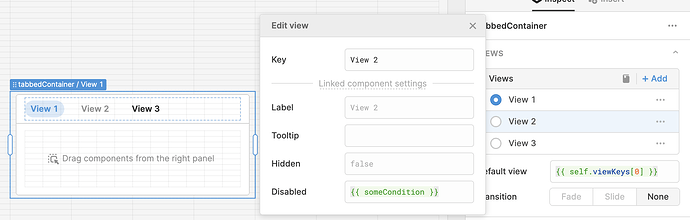
If you're trying to disable tabs programmatically in Retool, you've probably already discovered that the tab container component doesn't offer a built-in toggle to hide or disable individual tabs based on your data. It's one of the most commonly requested features in the Retool community — and while a native solution hasn't shipped yet, there are practical workarounds that get the job done. This guide walks you through the best approach available today.
Why Retool Doesn't Let You Disable Tabs Directly
The Retool tab container is designed to render all tabs at all times. There's no disabled or hidden property per tab. The only configuration surface you have is the Tab Names field, which accepts a list of strings. This is actually the key to the workaround: if a tab name doesn't exist in the list, that tab simply doesn't render. The catch is that tab content is positionally bound — Tab 1 always maps to the first name in the array, Tab 2 to the second, and so on. Removing a name from the front of the array shifts all content forward, which can cause the wrong content to appear under the wrong tab.
The Recommended Workaround: Dynamic Tab Names via a Transformer
The cleanest approach is to use a transformer to build your tab name array dynamically, then reference that transformer in the Tab Names field of your tab container. Here's how to set it up step by step.
- Step 1: Identify the condition that determines whether each tab should be visible. For example, check whether a query returns data:
query1.data.length > 0. - Step 2: Create a new transformer (e.g.
visibleTabNames) and write logic that returns only the tab names you want to show. Example:return query1.data.length > 0 ? ["Overview", "Details", "History"] : ["Overview", "History"]; - Step 3: In your tab container's Tab Names field, reference the transformer:
{{ visibleTabNames.value }} - Step 4: Make sure your tab content order matches the order of names in your transformer output. Because tabs are positional, if you conditionally drop "Details" from the middle of the array, "History" content will now render under position 2 — exactly where you want it.
How to Handle Hiding the First Tab
Hiding the first tab is trickier. If your transformer removes the first tab name, the content that was in Tab 1 will now appear under what was Tab 2. There's no built-in way to detach content from its positional slot. The most reliable fix here is to also conditionally hide the components inside the tab using each component's Hide when true setting, driven by the same condition used in your transformer. This way, even if a tab slot becomes visible at an unexpected position, it renders empty rather than showing stale or mismatched data.
Using a Space Character as a Hidden Tab Name
Some users in the Retool community have experimented with setting a tab name to an empty string or a single space (" ") to make it invisible. Setting it to an empty string results in a Tab 0 label appearing. Using a single space character hides the label visually, but the tab is still clickable if a user happens to click in that area of the tab bar. This is a fragile approach and not recommended for production apps, but it can serve as a quick stopgap if you also programmatically set the Default Tab index to the first non-empty tab.
Controlling the Active Tab After Hiding
When you hide a tab, you'll often want to redirect the user to the next valid tab automatically. Use a event handler or a setIn action to update the tab container's selected tab index whenever your visibility conditions change. For example, if Tab 1 is hidden and Tab 2 is now the first visible tab, set the container's value to 0 (since it's now positionally first in the array) to avoid landing on a blank or broken view.
What to Do While Waiting for Native Tab Disable Support
Retool's team has acknowledged this feature request internally. Until native per-tab disable/hide support ships, the transformer-based approach is the most maintainable solution. A few principles to keep your implementation clean:
- Keep your tab name array and your hide conditions in sync — use the same transformer or the same state variable to drive both.
- Avoid relying on the space-character trick in user-facing apps. It creates invisible interaction targets that confuse users.
- Use
Hide when trueon individual components inside tabs as a secondary safety net, especially for tabs that might shift position. - Document your tab order assumptions clearly in your transformer comments, since positional mapping is easy to break during future edits.
The Bottom Line
Programmatically disabling or hiding tabs in a Retool tab container requires a workaround today, but it's entirely doable with a transformer driving the Tab Names array. The biggest gotcha is the positional binding between tab names and tab content — once you account for that, you can reliably show and hide tabs based on any data condition. Until Retool ships a native disable property for individual tabs, this is the pattern used by most production Retool apps dealing with conditional tab visibility.
Ready to build?
We scope, design, and ship your Retool app — fast.