Guides
Retool "Diffs Too Large to Display" Bug: What's Happening and How to Fix It
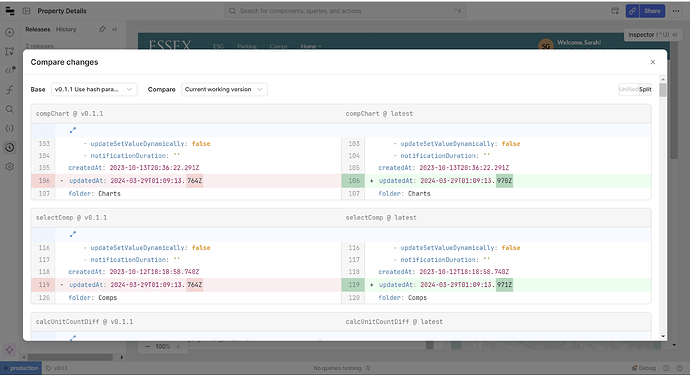
If you've opened Compare Changes in Retool and been hit with Diffs are too large to display in Retool despite not making a single edit, you're dealing with a confirmed platform-side bug. Multiple teams reported this issue simultaneously, and Retool's engineering team acknowledged it publicly. This guide explains what's happening, why Retool diffs too large to display appears even after a fresh publish or revert, and what you can safely do while the underlying issue is being resolved.
What Does "Diffs Are Too Large to Display in Retool" Actually Mean?
Retool's Compare Changes feature computes a diff between your current working version and the most recent published release. When that diff exceeds a certain size threshold, Retool refuses to render it and shows the Diffs are too large to display in Retool message instead. Under normal circumstances, this might happen once or twice a year — typically when Retool internally migrates how component fields are stored, generating a large but harmless structural diff.
What made this episode unusual is that the error started appearing constantly, for everyone, even immediately after publishing a release or reverting to the current release. Developers found they couldn't compare across old historical versions either — versions with known, small differences suddenly returned the same oversized-diff error.
Why Is Retool Generating a Massive Diff Without Any Changes?
Based on community reports, the root cause appears to be Retool automatically writing updatedAt timestamps to every component and code block in an app — even when no user-initiated change is made. One user noticed that opening the Compare Changes panel twice in a row showed a different diff each time, with the updatedAt value advancing to the current time on each check. This means Retool's internal state was being continuously mutated in the background, inflating the diff on every read.
This is a platform-level issue, not something caused by another editor in your workspace, a misconfigured query, or a large component model — though those are worth ruling out if you're on a self-hosted instance and the Retool team confirms the cloud-side fix doesn't apply to you.
How to Confirm the Bug Is Affecting Your App
- Open Compare Changes immediately after publishing a release — you should see "No changes." If you see a large diff instead, the bug is present.
- Open Compare Changes twice in a row without touching anything. If the diff is different between the two checks, Retool is writing timestamps or state in the background.
- Try comparing two old releases with a known small difference. If those also return
Diffs are too large to display in Retool, the diff engine itself is affected, not just your working version.
Step-by-Step: What to Do When You See This Error
You have limited options while this is a platform bug, but here's how to keep shipping safely:
- Step 1 — Publish anyway, carefully. One affected user published despite the opaque diff and reported nothing broke. If you have a strong mental model of the changes you've made (or made none at all), publishing is likely safe. Document what you intended to change in the release notes so you have an audit trail.
- Step 2 — Verify after publishing. Immediately after publishing, click Compare Changes again. If the bug is not actively mutating your app state, you should now see "No changes," which confirms the release captured your working version correctly.
- Step 3 — Do not rely on "Revert to Current Release" as a reset. As the original reporter discovered, reverting to the current release does not reliably reset the working version when this bug is present. The compare will still show a large diff after a revert.
- Step 4 — Isolate large changes before publishing. If you're mid-feature and worried about releasing unintended changes, pause development on that app and publish a known-clean version first. Once you see "No changes" post-publish, resume your work so you have a clean baseline.
- Step 5 — Report it to Retool Support. Include your app name, organization, and screenshots of the Compare Changes panel — especially if the
updatedAtfield is visibly incrementing. Retool's engineering team triaged this as an on-call incident, so a support ticket with reproduction details accelerates the fix.
Does This Affect Self-Hosted Retool Instances?
The community thread primarily surfaced reports from Retool Cloud users, but self-hosted teams should check their instance version. If you're running an older retool-onpremise version, a Retool platform upgrade may introduce the same internal state-mutation behavior. Check your Retool version under Settings → Organization and cross-reference with Retool's changelog for any releases that touched the app serialization or versioning layer.
Longer-Term: How to Keep Your Retool Release Process Healthy
Once Retool patches the underlying bug, a few habits will keep your compare workflow reliable going forward:
- Publish frequently and with concise release descriptions — small, labeled releases make diffs trivially small and easy to audit.
- Establish a convention that only one editor works on a given app's working version at a time, or communicate actively when handing off, so phantom large diffs from concurrent edits are easy to rule out.
- If you ever see a large diff after a routine Retool platform update, publish it in isolation with a note like
Retool internal migration — no functional changes. This keeps your release history clean and makes future diffs meaningful again.
The Retool diffs too large to display error is frustrating precisely because it breaks the trust you place in the compare workflow before every release. The short answer: it's Retool's bug, not yours. Publish carefully, verify immediately after, and follow up with Retool Support if the issue persists after a platform update.
Ready to build?
We scope, design, and ship your Retool app — fast.