Tutorials
How to Render Charts Inside Retool AI Chat
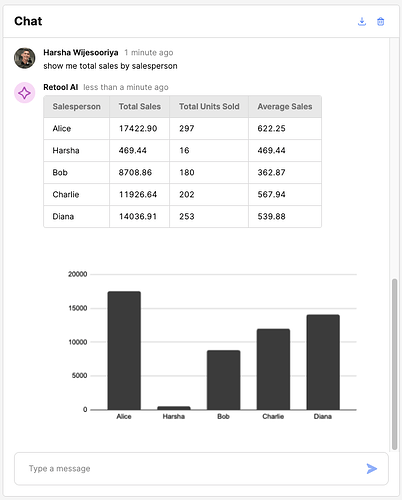
If you've been trying to render charts in Retool AI Chat, you've probably hit a wall. The AI Chat component is designed to work with Retool's native AI resource, and it doesn't obviously support custom API calls or dynamic visualizations out of the box. But there's a trick — discovered through hours of experimentation in the Retool community — that lets you inject chart images directly into the chat window using a Run JS Code query and either the OpenAI Assistants API or QuickCharts.io.
Why the Retool AI Chat Component Blocks Custom Queries
The AI Chat component has a property called Query to trigger. By default, the dropdown only shows queries that use the Retool AI resource type. This is intentional — Retool wires the component's send event directly to that query and uses the query's return value as the displayed response. The problem is that this locks you out of making custom fetch() calls, hitting third-party APIs, or post-processing results before they're rendered. That is, unless you know the workaround.
The Workaround: Swapping a Retool AI Query for a JS Query
Here's the key insight: Retool validates the Query to trigger selection at save time, not at runtime. That means you can trick the component into using an unsupported query type by doing a quick bait-and-switch. Once you've done this, whatever your JS query returns becomes the AI response displayed in the chat window — giving you full control over the output, including chart image URLs.
- Create a new query and set its type to
Retool AI. Configure it minimally — it just needs to exist and be valid enough to save. - Open the
AI Chatcomponent's inspector and set Query to trigger to the query you just created. - Go back to that query and change its type to
Run JS Code. Retool will warn you it's an unsupported type for this component — ignore it and save anyway. - The
AI Chatcomponent will now execute your JS query when a message is sent, and it will render whatever the query returns as the chat response.
How to Return a Chart Image from Your JS Query
Now that your Run JS Code query is wired to the chat, you have two solid options for generating chart images on the fly.
Option 1: Use QuickCharts.io (Faster)
QuickCharts.io lets you generate chart images by constructing a URL with your chart config encoded as a query parameter. No API key required. Your JS query can build this URL dynamically based on the user's message or underlying data, then return it as a Markdown image string so the chat component renders it inline.
- Construct a
QuickChartsURL with your chart type, labels, and data. For example:https://quickchart.io/chart?c={type:'bar',data:{labels:['Jan','Feb'],datasets:[{data:[10,20]}]}} - Return the URL from your JS query wrapped in a Markdown image tag:
return ""; - The
AI Chatcomponent will render the image inline in the conversation thread.
Option 2: Use the OpenAI Assistants API with Code Interpreter
If you need richer, data-driven charts, you can send a request to the OpenAI Assistants API with the code_interpreter tool enabled. The assistant will generate and return a chart as a base64-encoded image file. Your JS query handles the full API conversation: creating a thread, posting the user message, starting a run, polling for completion, and extracting the image from the response.
- Use
fetch()inside your JS query to callhttps://api.openai.com/v1/threads,/messages, and/runsin sequence. - Poll the run status endpoint until the status is
completed— avoid using a fixed delay in production as it's unreliable. - Extract the image file ID from the response, fetch the file content from
/v1/files/{file_id}/content, convert it to a data URL, and return it from your query. - The chat component renders the returned image directly in the thread.
Important Caveats to Know Before You Ship This
This approach works, but it relies on undocumented behavior. Retool could change how Query to trigger is validated in a future release, which could break your app. A few things to keep in mind:
- There is no built-in run-status polling in the
AI Chatcomponent when used this way — you need to implement your own polling loop inside the JS query usingasync/awaitand recursivefetch()calls. - The
SuccessandFailureevent handlers on theAI Chatcomponent may not fire reliably when using an unsupported query type. - Keep your OpenAI API key in a Retool
Secretor environment variable — never hardcode it in a JS query. - QuickCharts.io is the faster path for static or template-driven charts; use the Assistants API only when you need the model to reason about what chart to produce.
What This Unlocks for Your Retool Apps
Once you have this wired up, you can build genuinely impressive internal tools: a natural language analytics interface where users ask questions and get back bar charts, an AI assistant that visualizes query results on demand, or a reporting chatbot that pulls live data and renders it inline. The AI Chat component becomes a full-fledged conversational UI rather than a simple text interface. The workaround is a bit hacky, but until Retool adds first-class chart support to the chat component, it's the best path available — and it works.
Ready to build?
We scope, design, and ship your Retool app — fast.