Guides
How to Use Custom Icons in Retool (Workaround Guide)
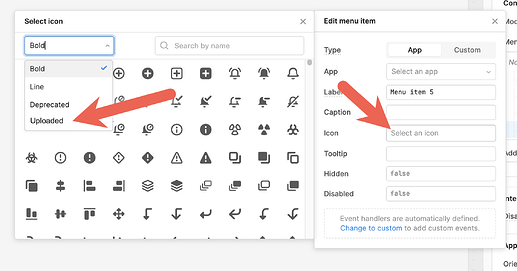
If you've been searching for how to use custom icons in Retool, you're not alone. Retool ships with a decent built-in icon set, but it has real gaps — no TikTok, no X (formerly Twitter), no brand icons, no niche UI icons. The community has been asking for a native upload-your-own-icon solution for a while. Until that ships, there's a working workaround using Retool's Custom Component and a CDN-hosted icon library like Font Awesome. Here's exactly how to do it.
Why Retool's Default Icon Library Falls Short
Retool's icon picker works fine for generic UI icons, but it's missing a lot of what real internal tools need — brand logos, social network icons, and industry-specific symbols. On top of that, the icon search inside Retool's picker is notoriously hard to use, often requiring you to scroll through hundreds of options just to find something basic. For teams building client-facing or brand-aligned internal tools, this is a real blocker.
The Custom Component Workaround: Font Awesome via CDN
The cleanest workaround right now is to load an external icon library — like Font Awesome — inside a Retool Custom Component. You inject the stylesheet via a CDN @import and then use standard icon class names in your HTML. It's not a global solution (the icon only lives inside that one component), but for many use cases it's good enough to ship.
Step-by-Step: Adding Font Awesome Icons to a Retool Custom Component
- Step 1: In your Retool app, drag a
Custom Componentonto the canvas. - Step 2: Open the component's code editor. You'll see default boilerplate HTML, CSS, and JS.
- Step 3: At the top of the
<style>block, replace or supplement the existing@importwith the Font Awesome CDN link:
@import url('https://cdnjs.cloudflare.com/ajax/libs/font-awesome/6.4.2/css/all.min.css'); - Step 4: Inside the JSX or HTML of your component, use any Font Awesome icon class. For example, to render the Facebook brand icon:
<i class="fa-brands fa-facebook"></i> - Step 5: Save and preview. The icon should render inside your custom component immediately.
You can swap fa-facebook for any valid Font Awesome icon name — fa-tiktok, fa-x-twitter, fa-bicycle, or any of the thousands of icons in the Font Awesome 6 free library. Check the Font Awesome icon search for the exact class names.
What the Full Custom Component Code Looks Like
Here's a minimal but complete example of a Custom Component that loads Font Awesome and renders a TikTok icon:
- Add
@import url('https://cdnjs.cloudflare.com/ajax/libs/font-awesome/6.4.2/css/all.min.css');at the top of your<style>block. - In your React JSX, render:
<i className="fa-brands fa-tiktok"></i> - Wrap it in whatever layout or card styles your app already uses.
The component still uses the standard Retool.connectReactComponent pattern, so it works with model and triggerQuery just like any other custom component. You're not losing any Retool interactivity by adding an external icon font.
Key Limitations to Know Before You Ship
- Scope is limited to the Custom Component. The Font Awesome stylesheet only applies inside that component's iframe — you can't use
fa-classes in native Retool buttons or text components. - CDN dependency. If the CDN is unreachable (rare but possible), the icon won't render. For production-critical tools, consider self-hosting the Font Awesome CSS on your own CDN or object storage and pointing the
@importthere. - Bundle size awareness. Retool custom components are sensitive to large bundles. Font Awesome's full CSS is not tiny — if performance matters, use a subset or only import the specific icon categories you need (e.g.,
brands.min.cssinstead ofall.min.css). - Not a native icon upload. You still can't upload an SVG or PNG and use it globally across your Retool app the way you'd use a built-in icon. That feature has been requested and is on Retool's radar, but hasn't shipped yet.
What About Uploading Your Own SVG Icons?
The original feature request — being able to upload a custom .svg or image file and use it anywhere an icon picker appears in Retool — is still an open request as of this writing. Retool's team has linked it to a formal feature request, so it's tracked. If this matters to your team, the best move is to upvote the feature request in the Retool community thread so it gets prioritized.
The Bottom Line
Until Retool ships native custom icon support, the Custom Component + Font Awesome CDN approach is the most practical solution. It takes under five minutes to set up, gives you access to thousands of brand and UI icons, and doesn't require any backend changes. It's scoped to the component, but for most use cases — displaying a social platform logo, rendering a niche UI symbol, or matching a client's brand kit — that's all you need. Build the component once, duplicate it across your app, and move on.
Ready to build?
We scope, design, and ship your Retool app — fast.