Tutorials
How to Upload Large Files to S3 in Retool
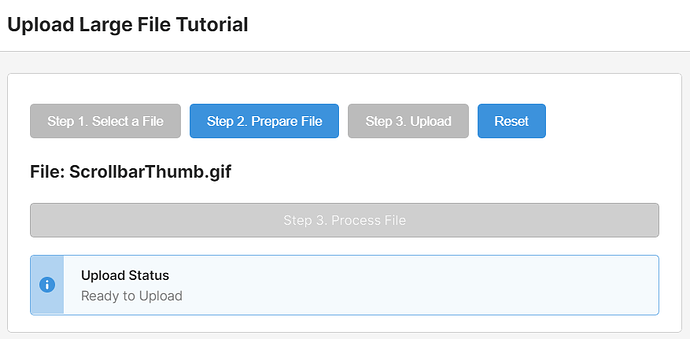
Retool's built-in file upload components have a hard limit of around 50MB. If you need to upload large files to S3 in Retool — think video files, large CSVs, or bulk exports — you'll hit that wall fast. Using fetch() with blobs can push things a little further, but it's still not a real solution for truly large files. The fix is to reach past Retool's components entirely and use the browser's native File Input API, wrapped inside a Custom Component. This post shows you exactly how to build it.
Why Retool's Default File Upload Falls Short for Large Files
Retool's FileButton and FilePicker components load the entire file into memory as a base64 string before doing anything with it. That's fine for small attachments, but it makes large file uploads unreliable or outright impossible. The browser's native <input type="file"> element, on the other hand, hands a File object directly to the JavaScript runtime — no base64 encoding, no Retool intermediary. Paired with S3 presigned URLs, this is the standard pattern for large file uploads on the web, and it works just as well inside a Retool Custom Component.
How the Solution Works End-to-End
The approach uses three moving parts working together:
- A Custom Component (
ccUploadtoS3) that renders native HTML buttons and a hidden file input, reads the selected file into anArrayBuffer, and communicates back to Retool viawindow.Retool.modelUpdate()andwindow.Retool.triggerQuery(). - A Retool query (
getSignedURL) that hits your S3 resource to generate a presigned PUT URL for the target file. - Two lightweight JS queries (
onFileNameChangeandonStatusChange) that act as message handlers, syncing state from the Custom Component back into Retool temporary state variables.
Step-by-Step: Building the Large File Uploader
Step 1 — Create the Custom Component. Add a new Custom Component to your Retool app and name it ccUploadtoS3. Paste in the HTML, CSS, and JavaScript that renders four buttons — Select a File, Prepare File, Upload, and Reset — along with a hidden <input type="file">. The script uses a FileReader to load the selected file as an ArrayBuffer, which is what S3's PUT endpoint expects.
Step 2 — Set the Custom Component Model. In the Custom Component's model field, add the following JSON so Retool has somewhere to receive state updates from the component:
{ "signedUrl": {{getSignedURL?.data === null ? "" : getSignedURL.data.signedUrl}}, "filename": "", "status": "" }
The signedUrl field is injected back into the component via window.Retool.subscribe(), so the uploader always has a fresh URL at upload time.
Step 3 — Add Temporary State Variables. Create two temp state variables: currentFile and uploadStatus. These hold the file name and upload status strings that the Custom Component sends over.
Step 4 — Create the Communication Handler Queries. Add a JS query named onFileNameChange with a single line:
currentFile.setValue(ccUploadtoS3.model.filename)
Add a second JS query named onStatusChange:
uploadStatus.setValue(ccUploadtoS3.model.status)
These queries are triggered from inside the Custom Component using window.Retool.triggerQuery() whenever the file name or status changes. Because Custom Components can't pass additionalScope to triggered queries, the workaround is to push data into the model first, then trigger the query to read it out.
Step 5 — Build the getSignedURL Query. Set up your S3 resource in Retool if you haven't already. Then create a query against that resource that generates a presigned PUT URL, using the current file name (sourced from currentFile.value) as the object key. This query is triggered by the Prepare File button click inside the Custom Component.
Step 6 — Add UI Feedback Components. Drop in a Text component and set its value to ##### {{currentFile.value}} to display the selected file name. Add an Alert component with its title set to Upload Status and its description set to {{uploadStatus.value}}. Finally, add a Process File button and set its Disabled property to {{!uploadStatus.value.includes('Complete')}} — this ensures downstream actions only trigger after a successful upload.
Fixing the CORS Error When Uploading to S3
A common stumbling block is a CORS error from S3 when the upload fires. Even if your standard Retool S3 queries work fine, the presigned URL PUT request comes from the browser directly — not through Retool's backend — so your S3 bucket needs an explicit CORS policy that allows it. Make sure your bucket's Cross-Origin Resource Sharing configuration includes PUT in AllowedMethods and * (or your specific Retool origin) in AllowedOrigins. Without this, the browser will block the request before it ever reaches S3.
How the Upload Flow Runs
- User clicks Select a File — a native file picker opens, the file name is sent to
currentFile, and the Prepare File button enables. - User clicks Prepare File —
getSignedURLruns and the presigned S3 URL is injected into the Custom Component model. - User clicks Upload — the component issues a
fetch()PUT request directly to S3 using the signed URL and the file'sArrayBuffer. No size limit imposed by Retool. - On completion,
uploadStatusupdates toUploading is Complete..., enabling any downstream buttons. - User can click Reset at any point to clear state and start over.
Known Limitation and a Potential Improvement
Ideally, getSignedURL would fire automatically when a file is selected, collapsing Steps 1 and 2 into one click. The challenge is timing: window.Retool.modelUpdate() is asynchronous, so when getSignedURL fires immediately after updateFileName(), the file name hasn't propagated to Retool yet and the signed URL gets generated for the wrong key. Wrapping the calls in async/await doesn't reliably solve it given how Custom Component messaging works. Splitting it into two explicit steps — select, then prepare — is the pragmatic workaround until Retool exposes a synchronous model update mechanism.
For teams regularly moving large files through internal tools, this pattern is a solid foundation. It keeps the UI consistent with the rest of your Retool app, gives users clear step-by-step feedback, and puts zero load on Retool's servers for the actual file transfer.
Ready to build?
We scope, design, and ship your Retool app — fast.