Tutorials
How to Connect Gmail to Retool (SMTP Setup Guide)
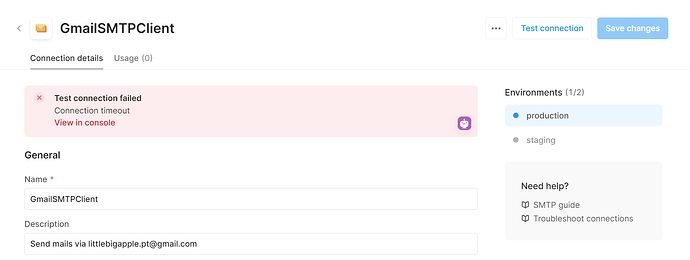
If you've been searching for how to connect Gmail to Retool, you've probably already discovered the frustrating truth: there is no native Gmail resource in Retool. No insert-your-API-key, no insert-your-secret, no one-click OAuth flow. Despite Gmail holding roughly 29% of the global email client market, a first-class Gmail integration simply hasn't shipped yet. The good news is that Retool's SMTP resource can bridge the gap right now — and this guide walks you through exactly how to set it up.
Why There's No Native Gmail Integration in Retool
The Retool community has been vocal about wanting a native Gmail resource. A feature request thread on the official community forum has collected steady interest for months, with users pointing out how much value a simple Gmail connector would unlock — from sending transactional emails out of data tables to triggering notifications from workflows. Retool's team has acknowledged the request and linked it to an internal ticket, but as of now the official guidance remains: use SMTP. Until a native integration ships, SMTP is the supported path.
What You'll Need Before You Start
- A Google account (Gmail or Google Workspace)
- A Google App Password — your regular Gmail password will not work if 2-Step Verification is enabled (and it should be)
- Admin access to your Retool instance to create a new resource
The most common reason this setup fails is using your normal Google account password instead of an App Password. Google blocks "less secure app" sign-ins by default, so generating a dedicated App Password is a required step, not optional.
How to Generate a Gmail App Password
- Go to your Google Account → Security
- Under "How you sign in to Google," select 2-Step Verification (enable it if not already on)
- Scroll to the bottom and select App passwords
- Choose app:
Mail— Choose device:Other (custom name)→ typeRetool - Click Generate and copy the 16-character password — you won't see it again
How to Set Up the SMTP Resource in Retool
- In Retool, navigate to the Resources tab and click Create new
- Select SMTP from the resource type list
- Fill in the following fields:
- Host:
smtp.gmail.com - Port:
465(SSL) or587(TLS/STARTTLS) - Username: your full Gmail address (e.g.
you@gmail.com) - Password: the 16-character App Password you just generated — not your Google account password
- From address: the same Gmail address
- Click Test connection — if it succeeds, hit Save
If the test connection hangs indefinitely and times out, double-check your port selection. Port 465 requires SSL to be explicitly enabled; port 587 uses STARTTLS. A mismatch between the port and the encryption setting is the most common cause of an infinite "Testing…" spinner. Also verify that no firewall or network policy on your Retool self-hosted instance is blocking outbound connections on those ports.
Sending an Email from a Retool Query
Once your SMTP resource is saved, you can create a query in any Retool app to send email. Add a new query, select your SMTP resource, and configure the fields:
- To:
{{ textInput1.value }}(or a hardcoded address) - Subject:
{{ "Update from " + current_user.fullName }} - Body: plain text or HTML — Retool supports both
Trigger the query from a button component using its onClick event handler. You can also chain it after a database write query using the onSuccess trigger so emails fire automatically after a record is updated.
Limitations to Know Before You Ship
- Gmail sending limits apply. Free Gmail accounts cap at 500 emails per day; Google Workspace accounts allow up to 2,000. If your tool needs to send at scale, consider a transactional email service like SendGrid or Postmark via their REST API resources instead.
- No read access. SMTP is send-only. If you need to read, search, or label emails in Gmail from Retool, you'll need to use the Gmail REST API through a Retool
REST APIresource with OAuth 2.0 — a more involved setup that's worth a separate guide. - App Passwords require 2FA. If your Google Workspace admin has disabled App Passwords, you'll need to request that they enable it or explore service account authentication.
Is a Native Gmail Integration Coming to Retool?
It's on the radar. Retool's team has an internal feature request ticket open and has expressed that a native Gmail resource would unlock significant value. For now, the SMTP workaround is stable and production-ready for most use cases — teams at agencies and startups are running it in live internal tools today. Watch the official community thread for updates, and vote on the feature request to signal demand.
If you're building internal tools on Retool and need help wiring up Gmail, SMTP, or any other email integration, the setup above gets most teams unblocked in under 15 minutes.
Ready to build?
We scope, design, and ship your Retool app — fast.